


User Guide
How to Use First Gravure
Here we explain the basic features to help you get the most out of First Gravure.
Login / User Registration
New User Registration
-
Access the Registration Page
Click the "Login" button at the top right of the screen.

-
Access the Login / Registration Page
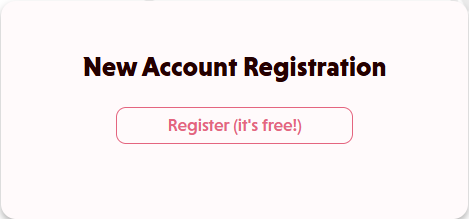
Click the "Create New Account" button on the right side of the screen.
-
Enter Required Information
Please enter the following information:
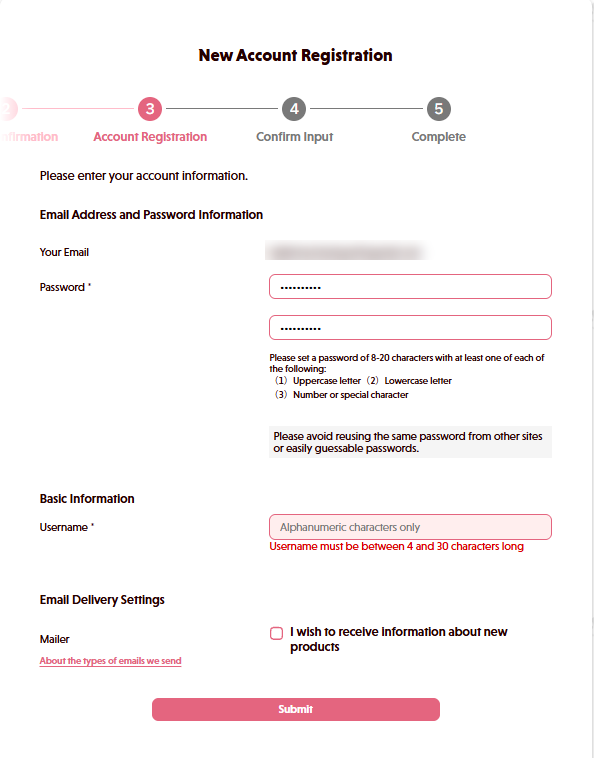
- Username (4-30 alphanumeric characters)
- Email Address
- Password (8-20 characters, including uppercase, lowercase, and numbers)

-
Email Verification
A confirmation email will be sent to the email address you registered. Click the link in the email to proceed to the account information entry page.
-
Member Registration (Full Registration)
You will be taken to the member information entry page. Enter the required information and complete your registration.
-
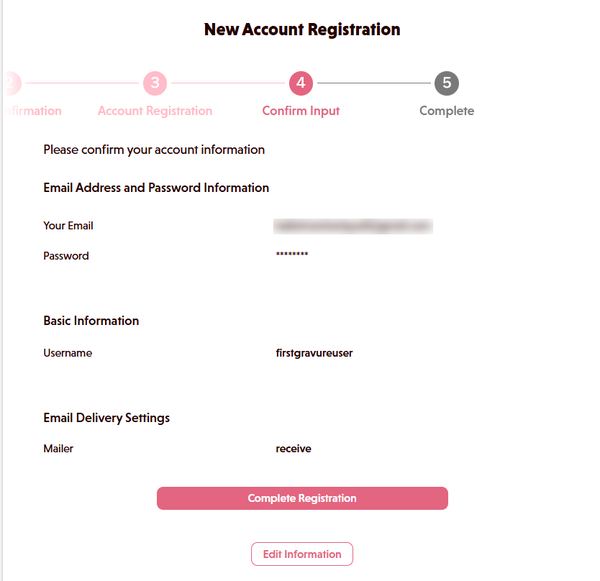
Confirm Your Information
Please review the information you entered, then click "Confirm" to complete registration.
-
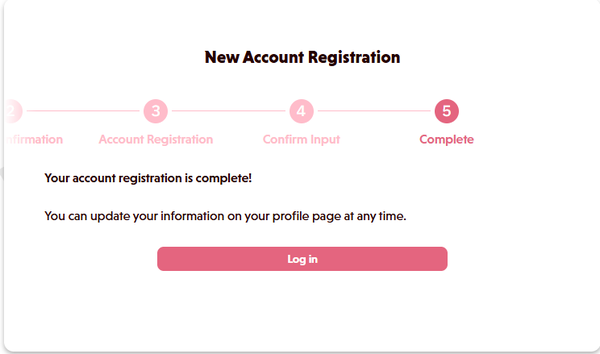
Registration Complete
Log in and enjoy First Gravure
How to Log In
-
Access the Login Page
Click the "Login" button at the top right of the screen.
-
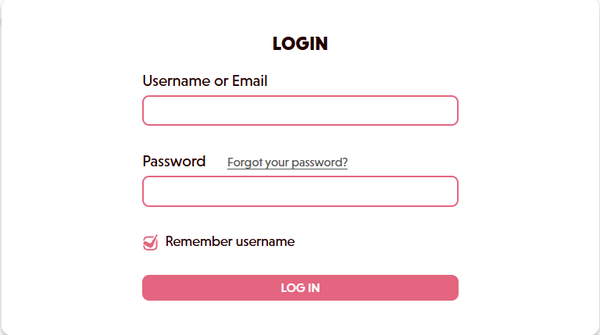
Enter Your Credentials
Enter your registered username (or email address) and password to log in.
How to Log In
-
Access the Login Page
Click the "Login" button at the top right of the screen.
-
Enter Your Credentials
Enter your registered username (or email address) and password to log in.
Products
Product List
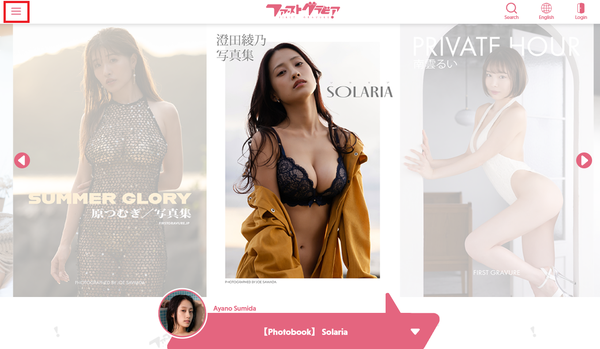
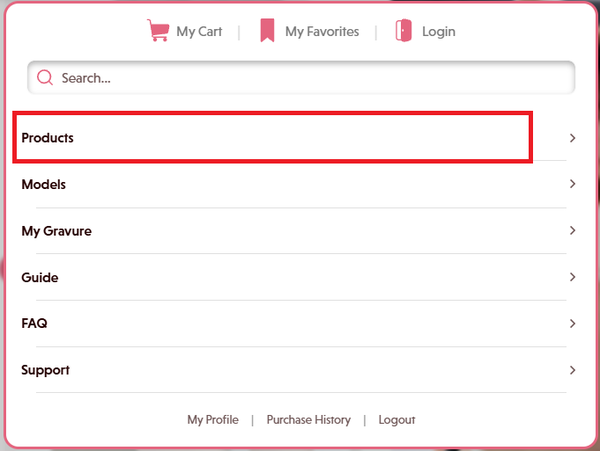
You can browse all available products on First Gravure from the top page or the "Product List" in the menu.
Menu
Product List Page
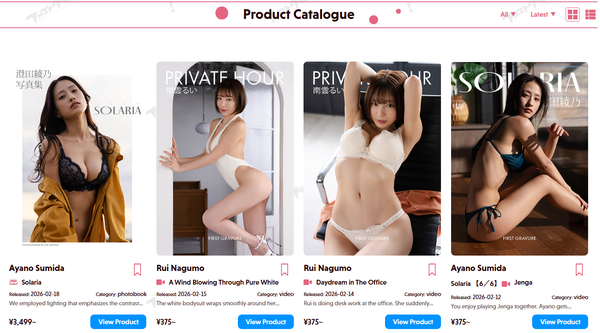
Product Types
- Videos:High-quality video content
- Photobooks:Digital photobooks
- Photo Sets:Curated photo sets
- Making-of:Behind-the-scenes footage
Filter Function
On the product list page you can filter products by the following criteria:

Select from: All, Videos, Photobooks, Photo Sets, Making-of
Select from: Newest, Most Popular, Price
Product Detail Page
Click on a product to view its detail page. The detail page shows the following information:
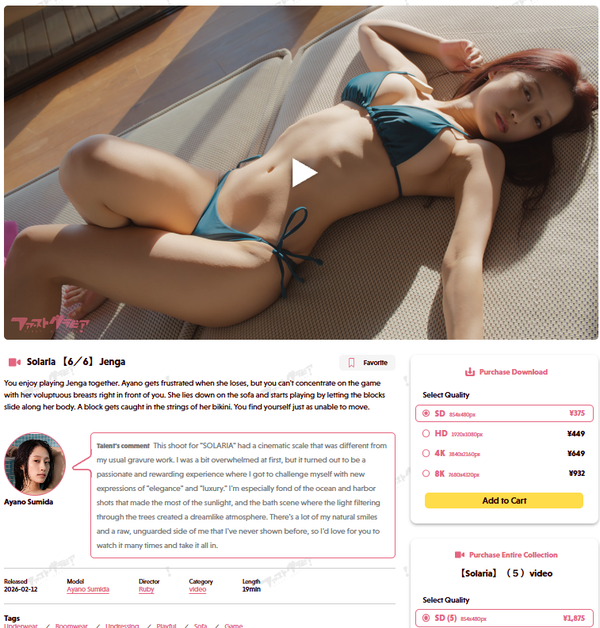
- Preview images and sample videos
- Appearing model information
- File size and duration
- Release date
- Price and quality options
- Related products
Cart
Adding to Cart
-
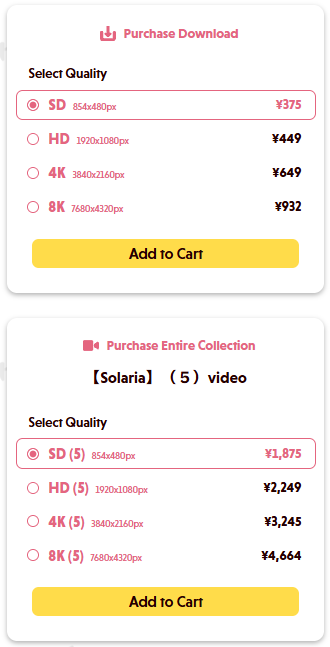
Select a Product
On the product detail page, select your preferred quality option.
-
Add to Cart
Click the "Add to Cart" button to add the selected product to your cart.
-
Adding Multiple Items
You can add other products to the cart in the same way. The number of items added will be displayed on the cart icon.
Cart Operations
The following operations are available on the cart page:
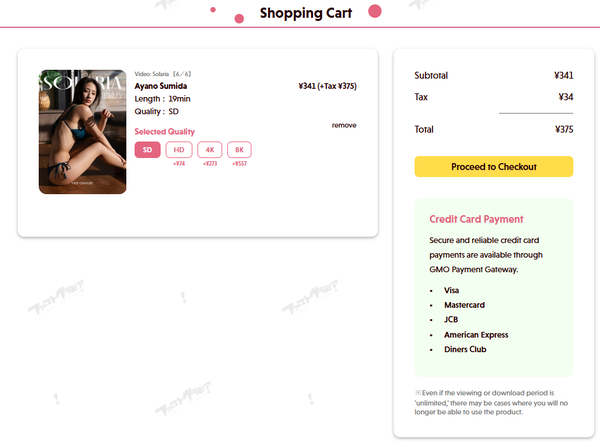
- Remove Items:You can remove unwanted items
- Check Prices:You can check the price of each item and the total amount
- Upgrade:You can also change to a higher quality version
Checkout Process
-
Review Cart Contents
Please review the items and total amount on the cart page.
-
Click the Purchase Button
Click the "Proceed to Checkout" button.
-
Go to Payment Page
You will be taken to the GMO payment page to complete your payment →.
My Gravure
My Gravure is your personal library where you can manage and view your purchased products.
Each feature is described from the left menu section below.
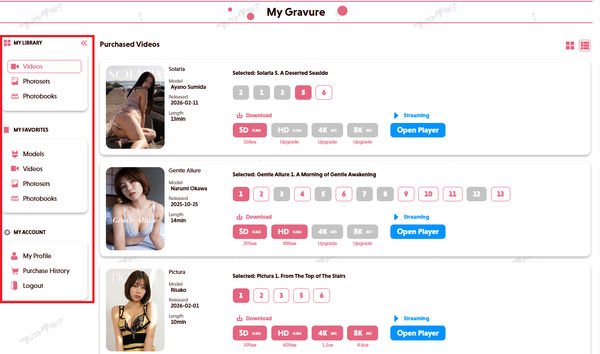
My Gravure Menu
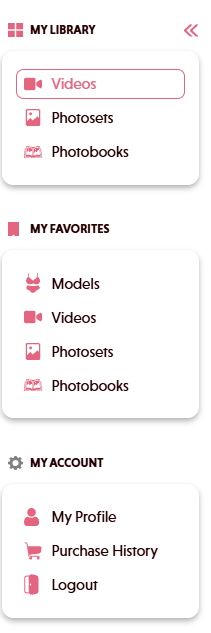
The menu is divided into the following features, described below.
- My Library
- Favorites
- My Account
My Library
Access all your purchased products.
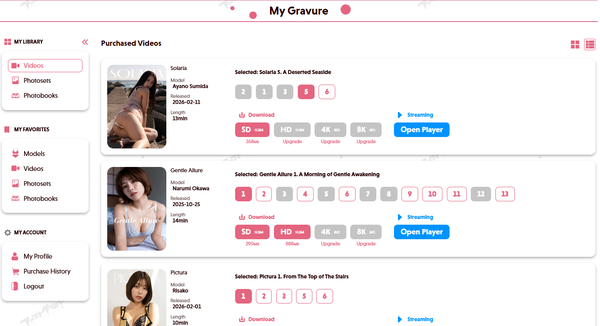
What You Can Do in My Library
- Purchase History:View all products you have purchased in a list
- Browse Content:View photobooks and play videos directly in your browser
- Download:Download high-quality versions (no download limit)
- Upgrade:Purchase a higher quality version of already purchased products for the price difference
Download Formats
- Download in ZIP format
- Quality: Standard / High / Ultra High
- Browser Viewing: Available
- Download in MP4 format
- Quality: SD / HD / 4K / 8K
- Streaming Playback: Available
Managing Series
Series consisting of multiple episodes are automatically grouped together.
- Easily switch between episodes within a series
- View unpurchased episodes
- Purchase an entire series at once
Viewing Products
-
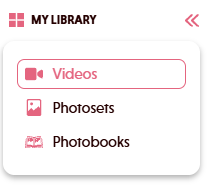
Click the Product You Want to View
In My Library, click the video, photobook, or photo set you want to view.
-
Watch Videos
Click Download. The video in your selected quality will be downloaded from your browser, so you can watch it on your PC, smartphone, etc.
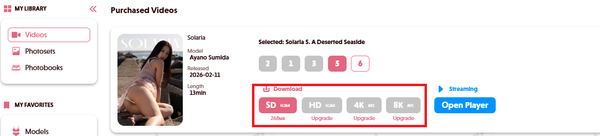
Or click Open Player.
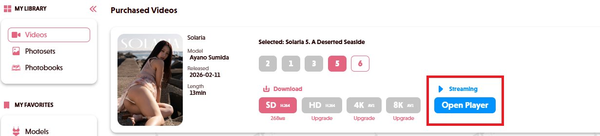
The viewer will appear, and clicking the play button in the center will start playback.

* Playback Controls
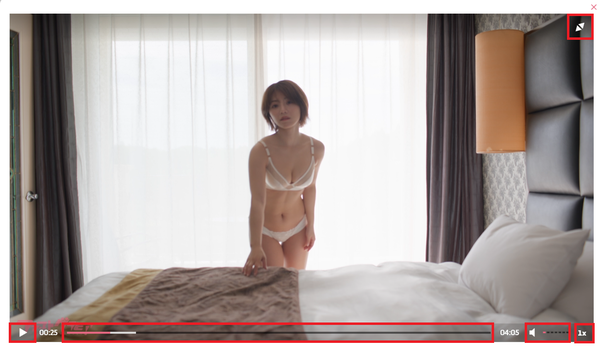
- Fullscreen
- Play, Pause
- Scene Navigation
- Volume Control
- Playback Speed
Keyboard shortcuts are also supported.
Play / Pause: Space key
Scene Navigation: Left / Right arrow keys
Volume: Up / Down arrow keys
Close Viewer: Esc key
-
View Photo Sets
Click Download. The photo set in your selected quality will be downloaded from your browser, so you can view it on your PC, smartphone, etc.
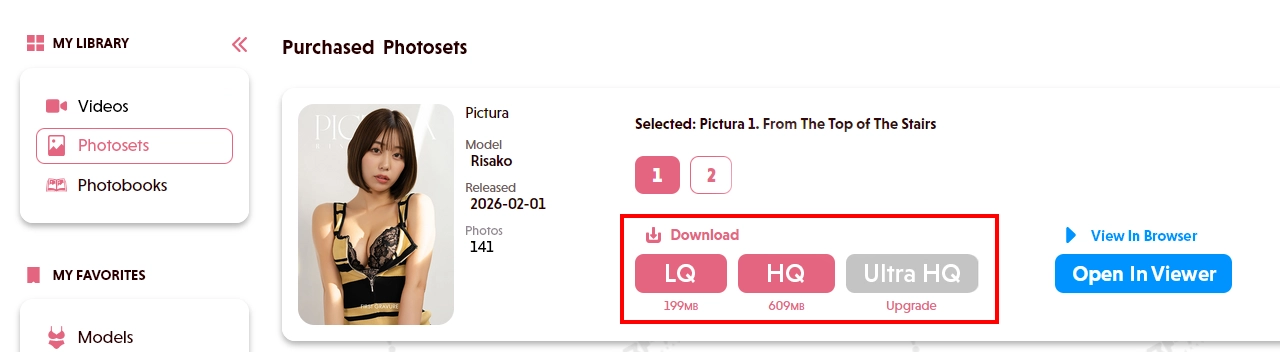
Or select a quality and click Open Viewer.
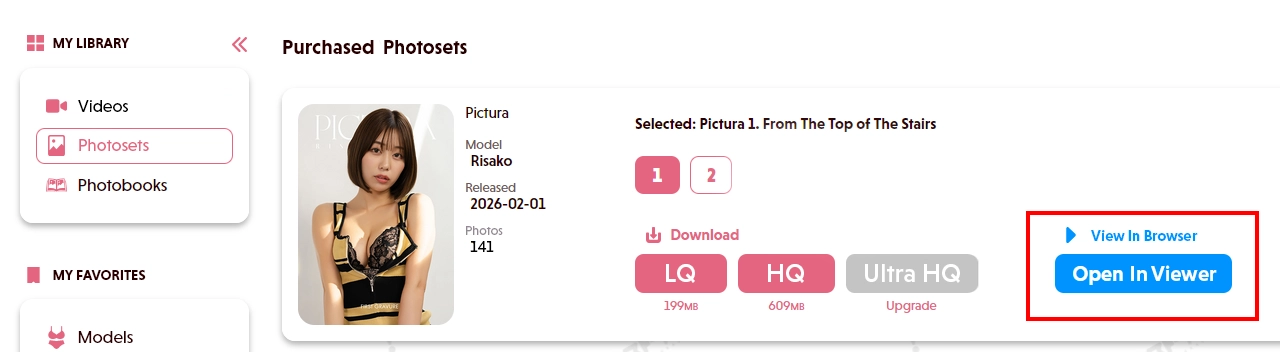
The viewer will appear, and clicking the forward button will display the next page.
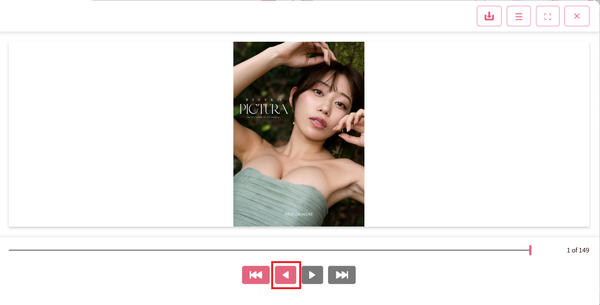
You can also use the following features by clicking the buttons at the top right of the viewer.
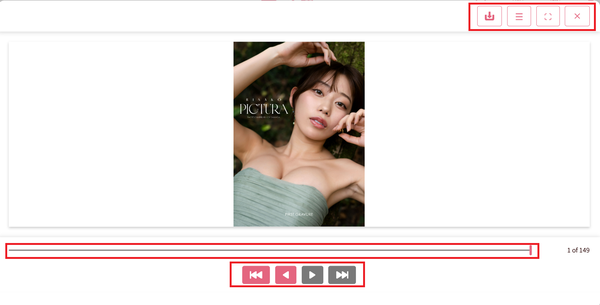
Top Right
- Download
- Toggle Thumbnail View
- Toggle Fullscreen
- Close Viewer
Bottom
- Slider (click to jump to any page)
- Go to Last Page
- Next Page
- Previous Page
- Go to First Page
Keyboard shortcuts are also supported.
Page Navigation: Left / Right arrow keys, PageUp, PageDown keys
Go to First / Go to Last: Home, End keys
Close Viewer: Esc key
Usage Examples
Download
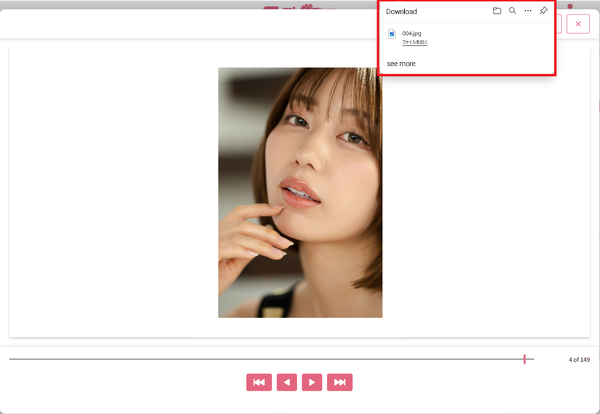
You can download the currently displayed image from your browser.
Toggle Thumbnail View
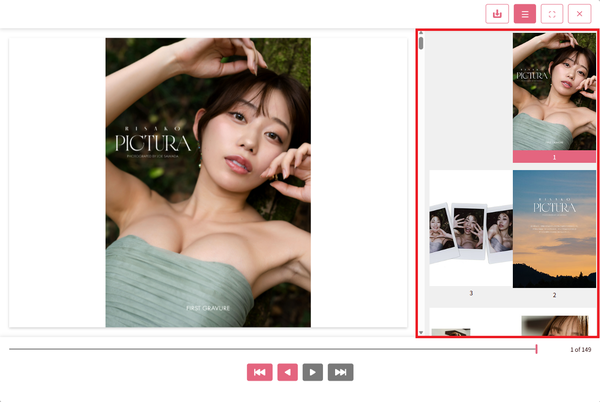
Thumbnails will appear on the right side of the viewer, and clicking a thumbnail will display that image.
Go to First
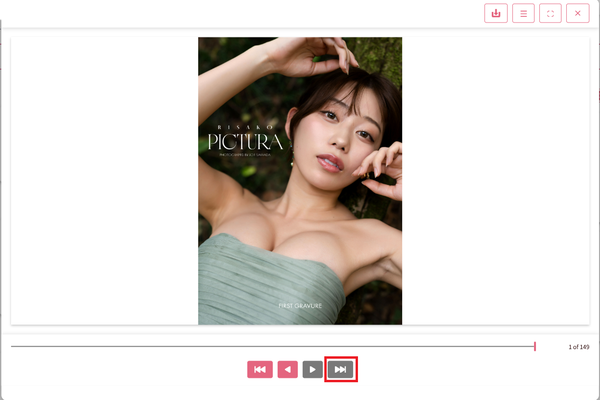
Moves to page 1.
Go to Last
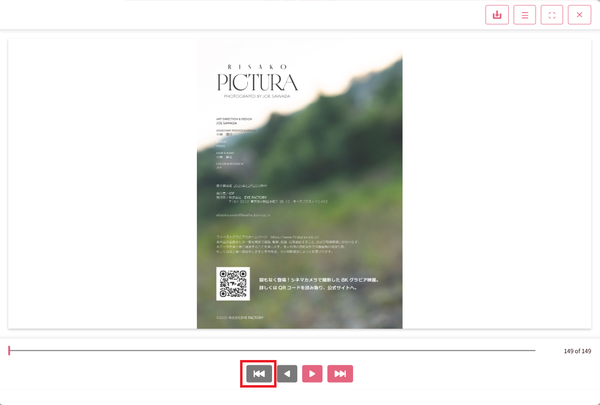
Moves to the last page.
Page Navigation
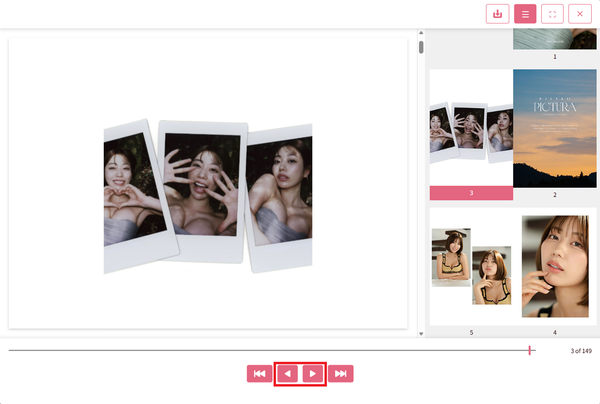
Moves to the next or previous page. When thumbnails are displayed, the current image will be highlighted in the thumbnail list.
-
View Photobooks
Click Download. The photobook you selected will be downloaded from your browser, so you can view it on your PC, smartphone, etc.
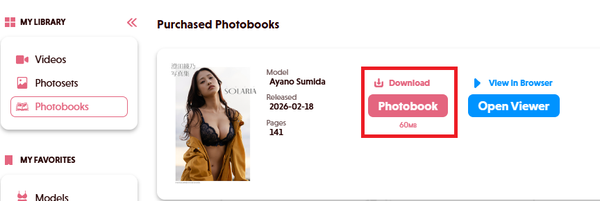
Or click Open Viewer.
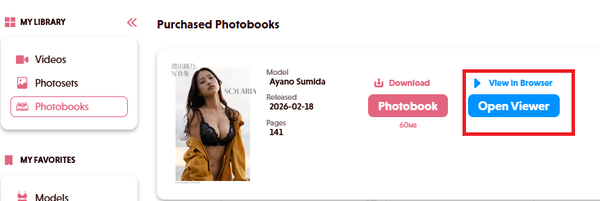
The viewer will appear, and clicking the forward button will display the next page.
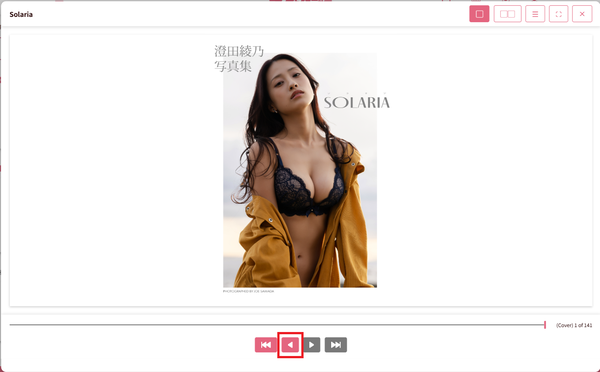
You can also use the following features by clicking the buttons at the top right of the viewer.
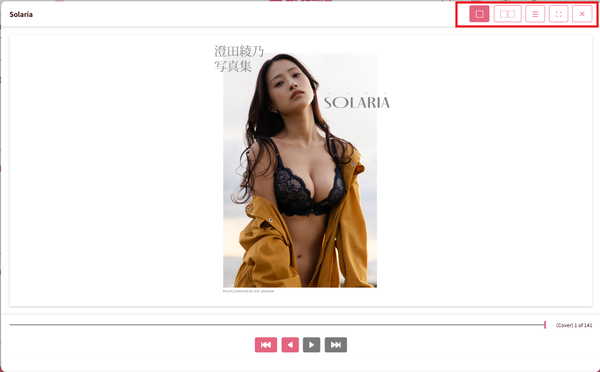
- Single Page View
- Spread View
- Toggle Thumbnail View
- Toggle Fullscreen
- Close Viewer
-
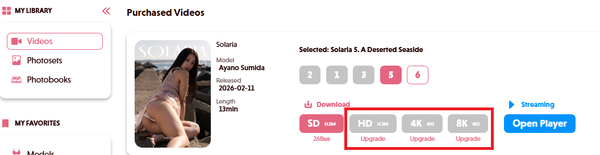
Upgrade
Enjoy your purchased products in higher quality by paying only the price difference.
Favorites
Add products and models you're interested in to your favorites for easy access later.
Add a Product to Favorites
-
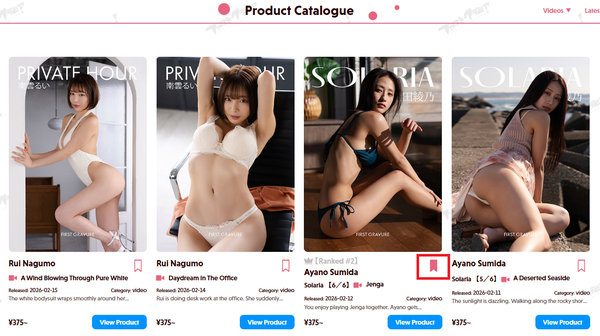
Click the Icon
Click the icon on the product detail page or product list.
-
Added to Favorites
The icon will turn pink, indicating it has been added to your favorites.
-
To Remove
Click the icon again to remove it from your favorites.
Add a Model to Favorites
-
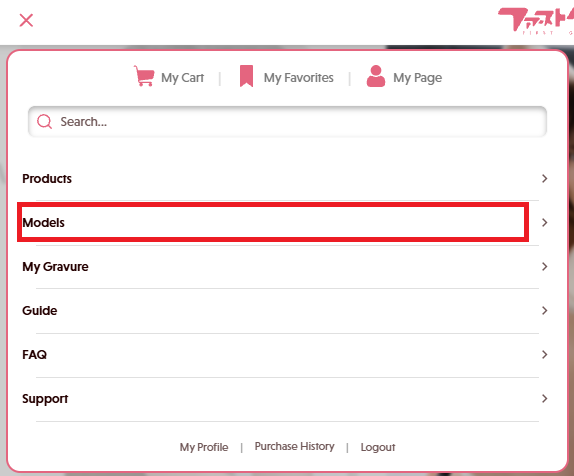
Access the Model Page
Open the model list.
-
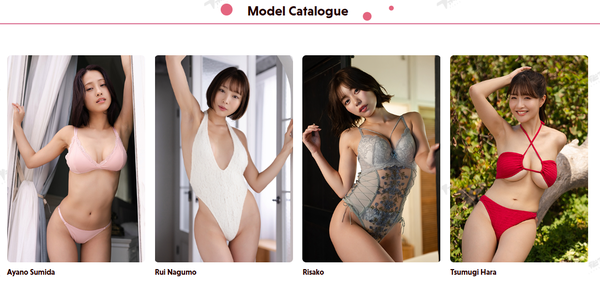
Model List
Open the page of the model you want to add to your favorites.
-
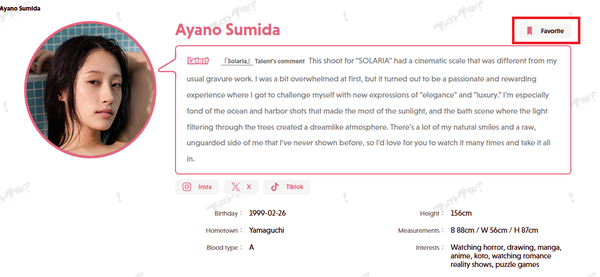
Click the Favorite Button on the Model Detail Page
Click the "Add to Favorites" button to register.
-
New Release Notifications
When a favorited model releases new content, it will be prioritized on the top page.
View Your Favorites List
After logging in, click "Favorites" from the user menu at the top left of the screen to view your favorites list page.
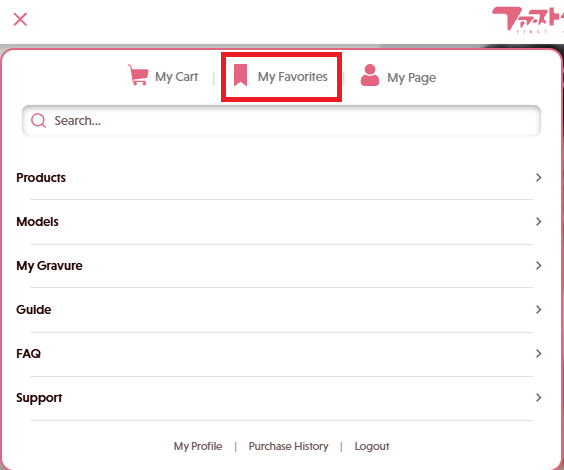
Favorites List Page
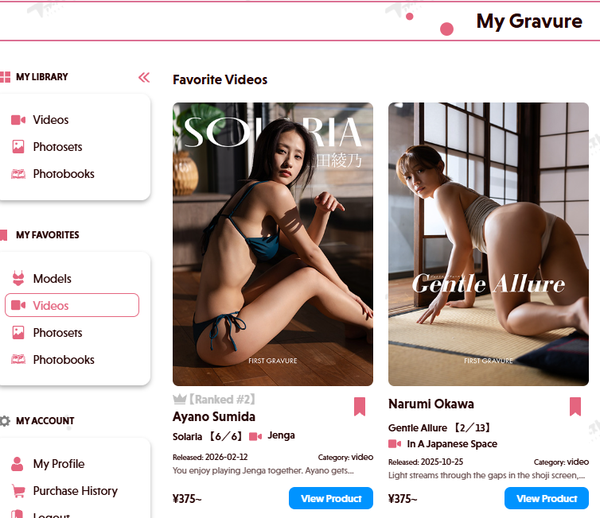
- Tab Switching:Switch between "Models" and "Products" tabs
- Category View:View by category: Videos / Photobooks / Photo Sets
How to Use Favorites
- Wishlist:Add products you want to purchase later to your favorites as a wishlist
- Sale Notifications:If a favorited product goes on sale, you'll be notified in My Gravure →
- Quick Access:Quickly access frequently viewed products and models
My Account
On the My Account page, you can view and change your account information and manage various settings.
My Profile
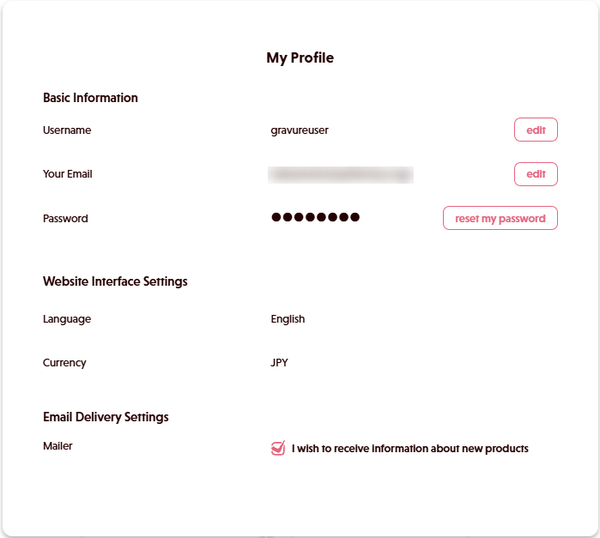
- Change Username:You can change your displayed username.
Click the Change Button
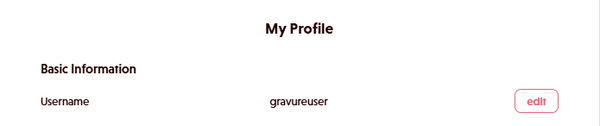
Enter your new username and click the Save button

A notification of the change will be sent to your registered email address.

- Change Email Address:You can change your registered email address. A confirmation email will be sent after the change.
Click the Change Button

Enter your new email address and current password, then click the Save button
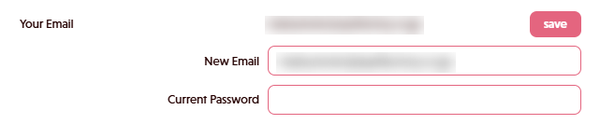
A confirmation email will be sent to your registered email address. Please click the link in the email to complete the email address change.

- Change Password:After entering your current password you can change to a new password.
Click the Reset Password Button

A confirmation email will be sent to your registered email address. Please click the link in the email to complete the password change.

- Email Preferences:You can choose whether to receive advance notifications for new products.
Purchase History
You can view your past purchase history from the My Account page.
Log Out
Log out of First Gravure.
Payment Methods
Available Payment Methods
The following payment methods are currently available on First Gravure.
You can pay by credit card securely through GMO Payment Gateway.
- Visa
- Mastercard
- JCB
- American Express
- Diners Club
Payment Process
-
Proceed to Checkout
Click the "Proceed to Checkout" button on the cart page.
-
Go to GMO Payment Page
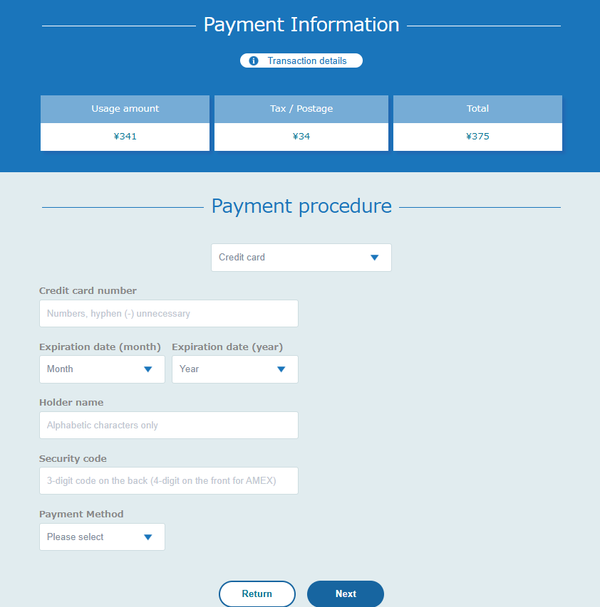
You will be taken to the secure payment page of GMO Payment Gateway.
-
Enter Credit Card Information
Enter your card number, expiration date, and security code.
-
Payment Complete
Once payment is complete, you will be taken to the purchase confirmation page. Your purchased products will be immediately added to My Gravure.
About Pricing
- Consumption Tax:Consumption tax applies to customers in Japan
- International Purchases:Consumption tax does not apply
- Price Display:Tax-included prices are shown on each product page
Frequently Asked Questions
Yes, you can change it from "Account Settings" in My Account →. After the change, a confirmation email will be sent to the new email address. Please click the link in the email to complete the change.
Products you have purchased can be viewed and downloaded indefinitely, as long as your account is active. There is no limit on the number of downloads.
*In the event of special circumstances such as service termination, we will provide ample advance notice.
There is no limit on the number of favorites. You can add as many products and models as you like.
Yes, you can log in and use the service from multiple devices (PC, smartphone, tablet, etc.) with the same account. Your purchase history and favorites will be synced across all devices.
*For security purposes, there may be a limit on the number of simultaneous logins.
Yes, downloaded videos and photobooks are saved to your device, so you can view them offline without an internet connection.
Yes, from My Gravure → you can upgrade previously purchased products to a higher quality version for the price difference. For example, you can upgrade from HD to 4K.
Need Help?
If you cannot find the information you are looking for above, or if you have any other questions, please feel free to contact us.
Go to Contact Form